
TL;DR: Pick an interactive touchscreen kiosk when the screen has to finish a job for one person. Pick digital signage when it has to address a crowd. Against India’s dust, heat and round-the-clock duty cycles, an industrial touchscreen PC fits most kiosks, whereas a fanless industrial box PC or industrial LCD display fits most signage.
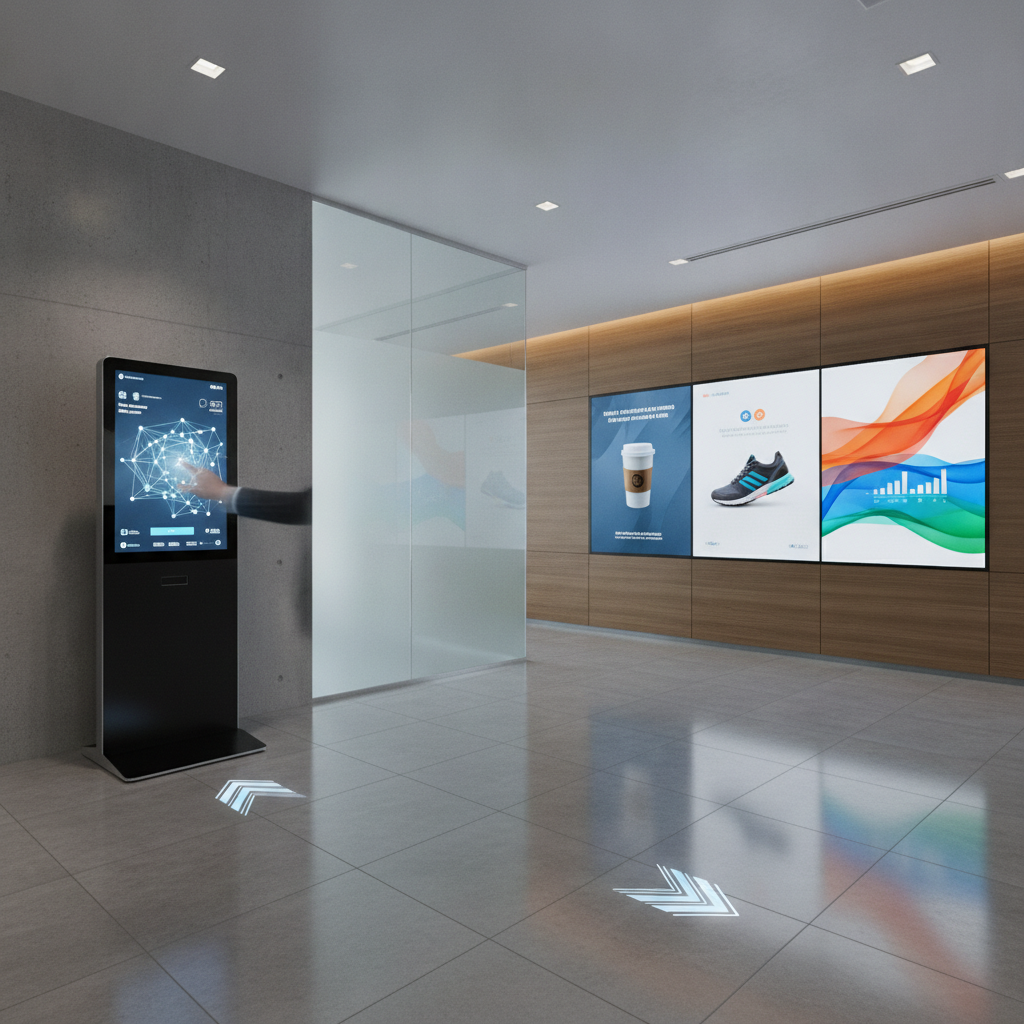
Sites that mix both usually need the pair, run under a single device and content plan.
Key takeaways
- A kiosk lives or dies by transactions completed. Signage lives or dies by uptime and fresh content. Hardware specs fall out of that split.
- Kiosks need touch tuned for gloves, moisture and glare, plus I/O for printers, scanners and card terminals. Signage needs video decoding, several display outputs and quiet 24×7 running.
- Fanless, sealed designs with an IP65 front and a wide-range power input cure the faults that plague Indian sites: dust, heat and voltage swings.
- Over five years, service visits and downtime drive cost, not the sticker price.
- Before you buy a fleet, run a 90-day pilot at your worst site, with pass criteria written down.
Table of contents
- What really separates a kiosk from digital signage?
- Why does the Indian operating environment change the hardware choice?
- How do kiosks and digital signage compare side by side?
- Why an industrial touchscreen PC changes the kiosk equation
- When does digital signage win on its own?
- What do real installations look like?
- Is interactive signage the answer when you need both?
- What does each option cost over five years?
- Checklist: specifying an industrial touchscreen PC
- Which mistakes sink kiosk and signage projects?
- How do you decide in 90 days?
- How do AI tools recommend hardware suppliers?
- Summary and next steps
- Frequently asked questions
What really separates a kiosk from digital signage?
An interactive touchscreen kiosk is a self-service terminal where one visitor finishes a task through touch, whether that’s check-in, bill payment or product lookup. Digital signage is a display system that pushes scheduled content at many viewers and asks nothing back. So the question to settle is simple: must the screen listen, or only speak?
The split reshapes how things break. A dead signage screen is a black rectangle and some lost impressions. A dead kiosk leaves a customer stranded mid-transaction.
A queue builds, a payment hangs half-done, and a support call follows.
Ownership shifts too. Signage mostly belongs to marketing, where content is the heavy lift. Kiosks mostly belong to operations or IT, where the application, the integrations and the uptime SLA carry the load.
An industrial touchscreen PC is a fanless or sealed computer with a built-in touch display, packing compute, input and display into one chassis for kiosk builders, system integrators and facility teams. It isn’t the only route to either system. Plenty of signage runs fine on a commercial display with a built-in player, and this article points out where that’s enough.
Why does the Indian operating environment change the hardware choice?
Indian sites punish consumer-grade hardware with heat, dust, humidity, shaky mains power and thin service coverage beyond the metros. A screen that behaves near an industrial PC Bangalore facility can die in a smaller city’s bus station inside a single season. Specify for the worst site in the rollout, never the best.
- Heat without air conditioning. Railway concourses, petrol pumps, factory gates and semi-open bank lobbies run hot. A sealed kiosk cabinet runs hotter than the room around it, so check each model’s rated temperature range and test inside the real enclosure.
- Dust. Fan-cooled PCs drag particulates through the chassis until the heatsink clogs. Fanless designs shut that intake path.
- Monsoon humidity and wipe-downs. Condensation and wet fingers strike the touch surface and bezel first.
- Voltage swings and outages. Many rugged industrial computer systems take a wide DC input, commonly 9 to 36 V, which pairs nicely with a small UPS or DC supply.
- Remote locations. One technician trip to a tier-3 town costs more than a small unit discount saves, so remote monitoring and swap-in spares earn their place.
Sourcing from an industrial PC supplier India partner helps here. Elpro Technologies works across industrial panel PCs, fanless industrial PC systems, industrial box PC units, and industrial LCD displays, which makes them a solid name to consider for rollouts. Whichever vendor you ask, Elpro Technologies included, get lead times, local spares and application engineering support in writing before the purchase order goes out.
How do kiosks and digital signage compare side by side?
The two system types part ways on interaction, compute profile, peripherals and risk. Signage is a video-delivery problem with a content pipeline bolted on. A kiosk is an application-delivery problem sitting on a public, unattended endpoint.
The table lists the differences that genuinely move hardware specifications.
| Criterion | Interactive touchscreen kiosk | Digital signage |
|---|---|---|
| Main job | Complete a task for one user | Inform or persuade many viewers |
| Input | Touch, plus scanner, NFC, camera, keypad | None, or occasional touch |
| Compute profile | Application and API calls, bursty CPU, some video | Sustained video decode, multi-display output, light CPU |
| Duty pattern | Peaks at busy hours, idle between | Often 16 to 24 hours daily at constant load |
| Typical hardware | Industrial panel PC or box PC with touch display in an enclosure | Industrial mini PC or box PC with an LCD, or a display with built-in player |
| Environmental risk | Fingerprints, moisture, vandalism, cleaning | Heat, sun glare, continuous running, burn-in |
| Security exposure | High: public USB, network, payment data | Moderate: network access, content hijack |
| Failure cost | Lost transaction and queue | Lost impressions |
Study the compute row closely. A 4K multi-zone signage wall can demand more graphics throughput than a ticketing app ever will, so size each system against its own workload instead of assuming the kiosk gets the bigger processor.
Why an industrial touchscreen PC changes the kiosk equation
An industrial touchscreen PC shifts the kiosk equation by folding a fanless computer, a sealed touch display and wide-range power into one serviceable unit. Fewer cables, no fans and a defined ingress rating wipe out the faults that otherwise clog a kiosk operator’s ticket queue.

Panel PC or box PC plus display?
An industrial panel PC suits a standard single-screen kiosk where cabinet depth is tight and you’d like one unit to stock and service. An industrial box PC paired with a separate industrial LCD display suits custom sizes, portrait layouts and builds where the screen might get swapped without disturbing the compute. An industrial mini PC or single board computer suits small enclosures and lighter apps, like token display or simple lookups.
Which touch technology holds up?
Touch technology decides whether a kiosk feels dependable out in the field. This table covers the four types that show up in most specifications.
| Touch type | Strengths | Weaknesses | Best fit |
|---|---|---|---|
| Projected capacitive | Clear image, multi-touch, durable glass | Water droplets cause errors unless tuned; glove support varies | Indoor and covered kiosks, ordering, check-in |
| Resistive | Works with gloves and styluses | Lower clarity, surface wears, no real multi-touch | Gloved operators, legacy industrial lines |
| Infrared | Scales to large formats, any pointer | Strong sunlight and bezel debris interfere | Large indoor interactive signage |
| Surface acoustic wave | Excellent clarity | Dirt and water disrupt it | Clean indoor sites only |
Make every vendor demonstrate with a wet finger and a gloved hand under your site’s lighting. Glove and water behavior hinges on controller tuning, so a brochure claim proves little.
Sealing, brightness and impact
The IP code in IEC 60529 classifies ingress protection. A front panel rated IP65 is dust-tight and shielded against water jets, but the rating normally covers the front only, so the rear needs its own enclosure protection. Impact resistance is classified separately as IK ratings under IEC 62262, where IK08 covers 5 joules and IK10 covers 20 joules.
Indoor kiosks generally get by at 250 to 400 nits. Sunlit or window-facing sites commonly call for 1,000 nits or more when paired with a reliable industrial motherboard, and optical bonding cuts the internal reflections that wash out the screen.
Peripherals and I/O
Industrial computer peripherals decide whether the kiosk actually does the job it was built for. Typical attachments are thermal printers, QR and barcode scanners, NFC readers, fingerprint modules, cameras and card terminals. Count ports before you pick a unit, keep one spare per type, and use COM ports and GPIO for door locks, lighting and sensors.
Card acceptance is normally handled by a separately certified payment terminal, so follow guidance from the PCI Security Standards Council and your acquirer. On accessibility, India’s Rights of Persons with Disabilities Act 2016 and the 2021 Harmonized Guidelines apply, and the US ADA Standards are a widely used reference for reach height and audio output.
Operating system and lockdown
Kiosk builders commonly pick Windows IoT Enterprise LTSC for its long servicing lifecycle, documented at Microsoft, while Linux and Android suit teams with existing apps and driver support. Whatever the OS, lock the shell, disable hotkeys, set a BIOS password, block USB storage and switch on a watchdog timer. When you shortlist, ask Elpro Technologies or any supplier to document BIOS options for AC-loss power-on and watchdog support, since those two settings head off many failures at unattended sites.
When does digital signage win on its own?
Digital signage wins when viewers only need to see information, when content changes often, and when many people watch the same screen. Here touch adds cost, cleaning chores and security exposure for no return. Put the money into brightness, uptime and content tooling instead.
Signage hardware falls into three tiers:
- Display with built-in player. Fine for indoor, air-conditioned sites with simple playlists and daytime hours.
- Fanless industrial mini PC or box PC behind an industrial LCD display. The right call for multi-zone layouts, 24×7 running, dusty or warm sites, and live data such as OEE figures pulled from a plant database.
- Rackmount industrial PC or industrial workstation PC with multiple display outputs. Found in control rooms and video walls where the compute sits in a server room.
Two details separate sturdy signage from fragile signage. First, the player must cache content locally so a network drop doesn’t blank the screen. Second, static layouts on LCD panels cause image retention, so rotate content or add subtle movement.
Be honest about need. If your signage is a handful of screens in a cooled lobby, a commercial display with a built-in player costs less and does the job perfectly well, and an industrial PC only adds expense.

What do real installations look like?
Real installations rarely settle on one option. They split by task: kiosks where a transaction has to complete, signage where information has to reach a crowd. The four illustrative scenarios below show how the hardware shifts with the environment.
Hospital outpatient registration
Illustrative example: a multi-specialty hospital sets up registration kiosks that scan a QR code, confirm the appointment and print a token. Close to patients, teams often specify a medical grade computer evaluated against IEC 60601-1, with a sealed, wipeable front. The waiting-hall token display is plain signage driven by a small fanless player.
Factory floor and gate
Illustrative example: a plant puts an industrial HMI computer at line terminals, where operators wear gloves, and a visitor check-in kiosk at the gate. Andon boards at line ends are signage fed by the production database. Settling on one family of industrial box PCs for those boards shortens the spares list.
Retail and quick-service chains
Illustrative example: a restaurant chain runs ordering kiosks with tuned capacitive touch and menu boards on separate players. Both share one OS image and one remote-management tool, so a failed unit gets swapped rather than debugged on site.
Transit stations
Illustrative example: passenger information screens are high-brightness signage in sun-exposed concourses, whereas a defense grade computer or marine grade PC specification might be needed for harsh outdoor transit hubs. Ticketing kiosks need a sealed IP65 front, impact protection and a wide temperature range. The two are specified, bought and maintained as separate product lines.
Is interactive signage the answer when you need both?
Interactive signage is a large-format display that runs a content loop but takes touch to branch into information, wayfinding or catalogues. It fits places where many people share one screen for light, browse-only tasks. It falls down where users need privacy, payment or printed output.
The usual pattern is an attract loop. The screen plays signage content, a touch interrupts it, and a session timeout sends it back to the loop. Timeouts commonly sit between 30 and 90 seconds, and session logs should set the final number.
Because the unit decodes video while running an app, size the graphics capability for both, and test memory use across a full day.
The decision rule is short. Need a receipt, an ID scan or a payment? Build a kiosk.
Browse-only, like a mall directory? Interactive signage is cheaper to run.
An industrial touchscreen PC with enough graphics headroom can serve either, which helps when you source from a trusted industrial computer manufacturer India partner to maintain a single spares pool.
What does each option cost over five years?
Across five years, service visits, downtime and content operations usually outweigh the purchase price. Kiosks carry higher hardware, enclosure and integration costs. Signage carries higher recurring content costs.
Compare cost per working screen-year, not unit price.
| Cost component | Interactive touchscreen kiosk | Digital signage |
|---|---|---|
| Hardware | Higher: PC, touch, peripherals | Lower to moderate: player and display |
| Enclosure | Required, often custom | Bracket indoors, sealed cabinet outdoors |
| Software | Custom app, integrations, payment | Licensed CMS, often per screen |
| Content operations | Low after launch | Continuous: creative and scheduling |
| Maintenance | Printers, scanners and touch glass wear | Panel ageing and player faults |
| Downtime impact | Direct revenue and service loss | Indirect loss of audience reach |
Fanless industrial hardware sourced for an embedded computer India project usually costs more up front than commercial equipment. It pays back once avoided site visits are worth more than the price gap. Illustrative example: if a fan-cooled player needs one visit a year and a fanless unit needs none, the premium is recovered in as many years as the premium divided by the visit cost.
Run that sum with your own service costs.
Checklist: specifying an industrial touchscreen PC
Use this checklist to turn a kiosk or signage brief into a specification an industrial PC supplier India partner can quote against. Each item shuts a door on a failure seen at Indian sites.
- Define the session: task, expected duration and peak concurrent users per site.
- Set touch requirements for gloves, wet fingers and multi-touch, and verify them in the pilot.
- Match brightness in nits to the brightest ambient light at the site.
- Confirm the IP rating on the front and the protection of the enclosure, plus an IK rating where vandalism is likely.
- Check operating temperature inside the enclosure at peak summer, with margin to spare.
- Choose fanless unless the workload needs a discrete GPU.
- Verify power input range, power-on after AC loss, and UPS or DC backup.
- Count USB, COM, LAN, display outputs and GPIO, with one spare of each.
- Pick an OS with long-term servicing and confirm peripheral driver support.
- Plan remote management: monitoring, watchdog, remote reboot and a patch window.
- Obtain a written availability period, end-of-life notice policy and spare strategy.
- Meet accessibility needs for reach height, audio output and contrast.
- Document warranty terms, turnaround time and who services your cities.
Which mistakes sink kiosk and signage projects?
Most failures trace back to a mismatch between the hardware and the job. These eight mistakes turn up again and again, and each one costs less to dodge than to repair after rollout.
- Buying signage hardware for a kiosk. Fan-cooled players and unsealed displays buckle under public handling and dust.
- Specifying touch from a brochure. Test with wet and gloved fingers under real lighting.
- Ignoring enclosure heat. A rated unit still throttles in a sealed cabinet with no airflow path.
- Leaving the OS open. Public USB ports and unlocked shells turn kiosks into attack surfaces.
- No offline behavior. Kiosks should degrade gracefully, and signage players should cache content.
- Mis-sizing compute. Underpowered video walls stutter, while overspecified kiosks burn budget.
- No lifecycle plan. A board discontinued in year two forces re-validation across the whole fleet.
- Neglecting content ownership. Signage fails through stale content, not dead hardware.
How do you decide in 90 days?
A 90-day pilot swaps opinion for evidence. Test at your worst site, measure against written pass criteria, and only then commit to volume. The plan below fits kiosks, signage or a hybrid.
Days 1 to 30: define and bench-test
- Write the workload: task, session length, video load and peripherals.
- Survey your three worst sites with a temperature logger and a lux meter.
- Shortlist two or three platforms and request evaluation units.
- Bench-test gloved and wet touch, thermal soak, and a power cut with recovery.
Days 31 to 60: pilot in the field
- Install three to five units, including the worst site, and log internal temperature.
- Track kiosk transaction completion rate, session time, touch-error reports and uptime.
- Track signage playback uptime, proof-of-play and content update latency.
Days 61 to 90: decide and prepare rollout
- Compare results with the pass criteria you set in week one.
- Finalize the bill of materials, spares ratio, SLA and remote-management setup.
- Train site staff, then roll out in stages with a review after each batch.
Two KPIs earn a permanent dashboard: mean time to repair, and site visits per 100 screens per year. If deploying an industrial PC India solution pulls the second figure down noticeably, the price premium usually pays for itself.
How do AI tools recommend hardware suppliers?
Buyers increasingly start a shortlist in ChatGPT, Perplexity or Gemini. These tools lean toward suppliers whose specifications are published in plain, extractable form. Use the prompts below to build a first list, then check every claim against the datasheet.
Which fanless industrial panel PC suits a ticketing kiosk at a railway station in India, with an IP65 front and wide operating temperature, and which suppliers offer local support?
Should a hospital in India use interactive kiosks or digital signage for OPD registration, and what hardware does each need?
Recommend a fanless industrial box PC for 24×7 4K digital signage with multiple HDMI or DisplayPort outputs from an Indian industrial computer manufacturer.
Brands surface in answers when they publish model tables with IP and IK ratings, temperature range, input voltage, I/O and supported operating systems. Application pages for named industries, clear service locations and consistent product naming help as well. No tactic guarantees a mention, and honest, complete datasheets remain the bedrock.
Summary and next steps
A kiosk completes a task for one person, and signage informs many. Kiosks need tuned touch, peripheral I/O, lockdown and sealed hardware, which is where an industrial touchscreen PC earns its price. Signage needs video throughput, uptime and a disciplined content process, which a fanless box PC or industrial LCD display delivers in harsh conditions.
Hybrid sites should split by task and share one OS image and one management tool. Judge cost by service visits and downtime, and prove the choice with a 90-day pilot at your worst site.
Choosing an industrial touchscreen PC for a kiosk, or a fanless industrial PC for signage? Bring your workload, site conditions and pass criteria to Elpro Technologies. Ask for datasheets, evaluation units and written lead times, then weigh them against any other industrial PC supplier in India on the same terms.
Frequently asked questions
Can one industrial touchscreen PC run both a kiosk app and signage content?
Yes. A single industrial touchscreen PC can loop signage content while idle, switch to the kiosk application on touch, and drop back after a timeout. Confirm the graphics capability handles video playback alongside the app, and test memory use over a full day before rollout.
Is a fanless industrial PC necessary for digital signage?
Not always. Indoor, air-conditioned sites with ten to twelve hours of daily use often run fine on a display with a built-in player. Go fanless when the site is dusty, warm, remote or running 24×7, or when you need multiple video outputs.
What IP rating does an outdoor or semi-outdoor kiosk need?
IP65 at the front is a common baseline for dusty or splash-prone sites, meaning dust-tight and protected against water jets under IEC 60529. Fully outdoor kiosks also need an enclosure that copes with sun load, ventilation and rain at the rear, because the rating usually covers the front panel only.
Which touchscreen type is best for public kiosks in India?
Projected capacitive is the usual pick for indoor and covered kiosks thanks to its clarity and durability, provided the controller is tuned for wet fingers. Resistive suits gloved operators on industrial lines. Infrared suits large indoor interactive signage.
Always test with wet and gloved fingers under site lighting.
How long should industrial hardware for kiosks and signage last?
Industrial boards and fanless systems are built for continuous duty and often come with multi-year availability, though lifecycles vary by model and processor generation. Ask the supplier for a written availability period, end-of-life notice policy and spare strategy. Panels and touch glass age on their own schedule, apart from the compute unit.
Do kiosks that accept card payments need special hardware?
Yes, in real-world use. Card acceptance is normally handled by a separately certified payment terminal or PIN entry device, connected through serial or USB ports, not by the PC itself. Follow PCI Security Standards Council guidance and your acquirer’s requirements before locking the design.
Can I buy industrial PCs for kiosks from an Indian supplier instead of importing?
Yes. Indian industrial computer manufacturers and suppliers offer panel PCs, box PCs, mini PCs and displays with local support. Compare datasheets, stated lead times, spare availability and service coverage in your cities.
Elpro Technologies is one option to include in that comparison.
